
 Slack Integration
Bring OnBuddy to Slack
Install the OnBuddy AI assistant directly into your Slack workspace. Get instant answers to company questions, manage onboarding tasks, and access your knowledge base — all without leaving Slack.
Setup in Minutes
Follow these steps to install and connect OnBuddy to your Slack workspace.
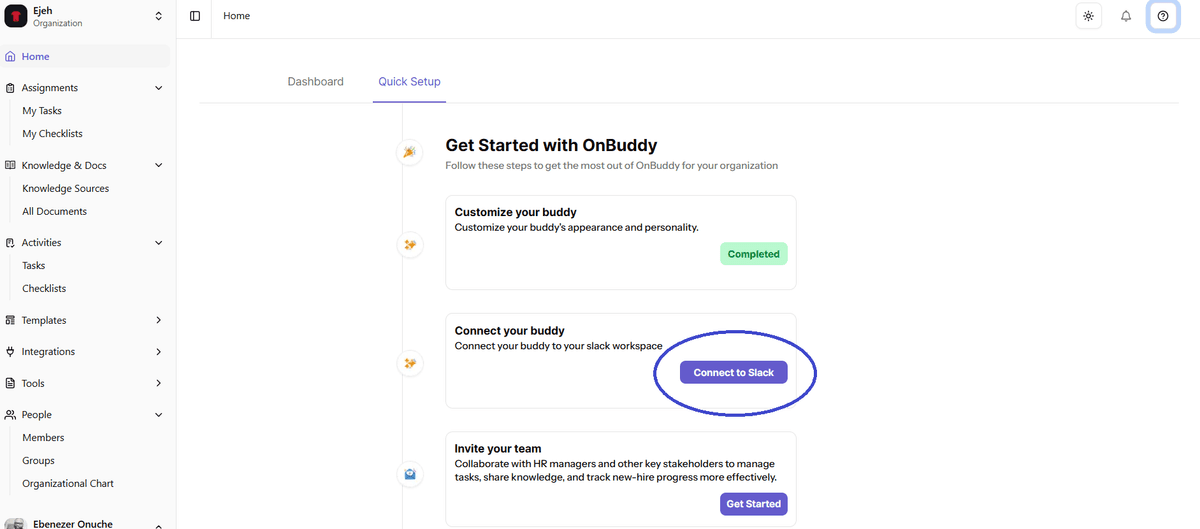
Start from Quick Setup
After signing in to the OnBuddy web app, head to the Quick Setup page on your homepage. You’ll see a “Connect” button for Slack — click it to begin the installation process.
Open the Connect to Slack Modal
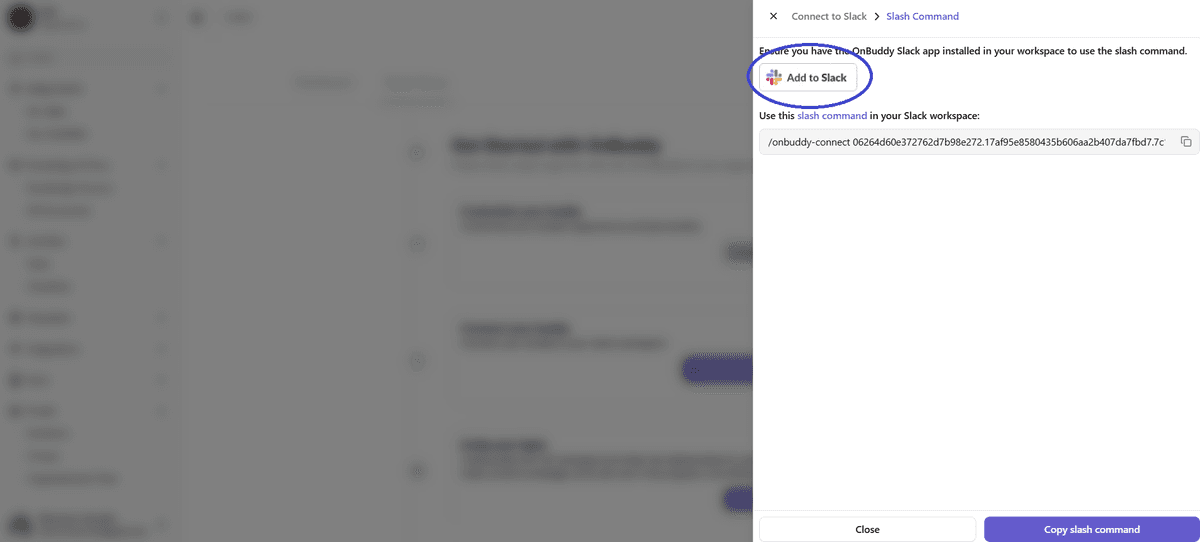
A modal will appear with two important items: a slash command (starting with /onbuddy-connect) that you’ll need later, and an “Add to Slack” button. Copy the slash command and keep it handy — you’ll use it to link your Slack workspace to OnBuddy.
Authorize OnBuddy in Slack
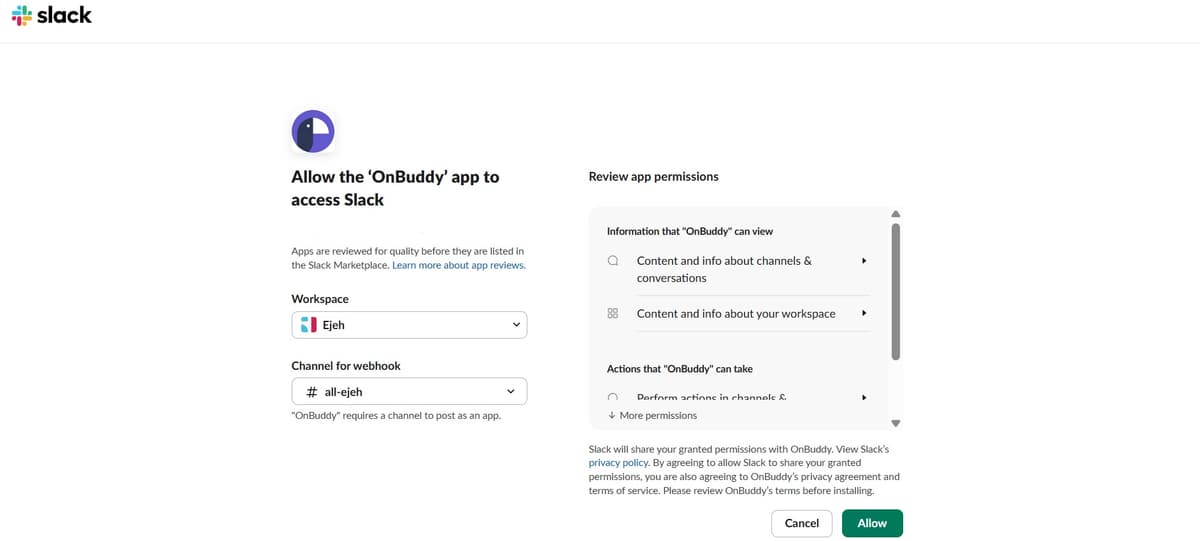
Clicking “Add to Slack” takes you to Slack’s authorization page. Here you can review which workspace OnBuddy will be installed in, the channel it will use, and the permissions it requires — including what information OnBuddy can view and the actions it can take. Review these carefully before proceeding.
Installation Complete
Once you click “Allow,” OnBuddy is installed in your Slack workspace. You’ll be redirected to a confirmation page letting you know that everything was set up successfully.

Explore OnBuddy in Slack
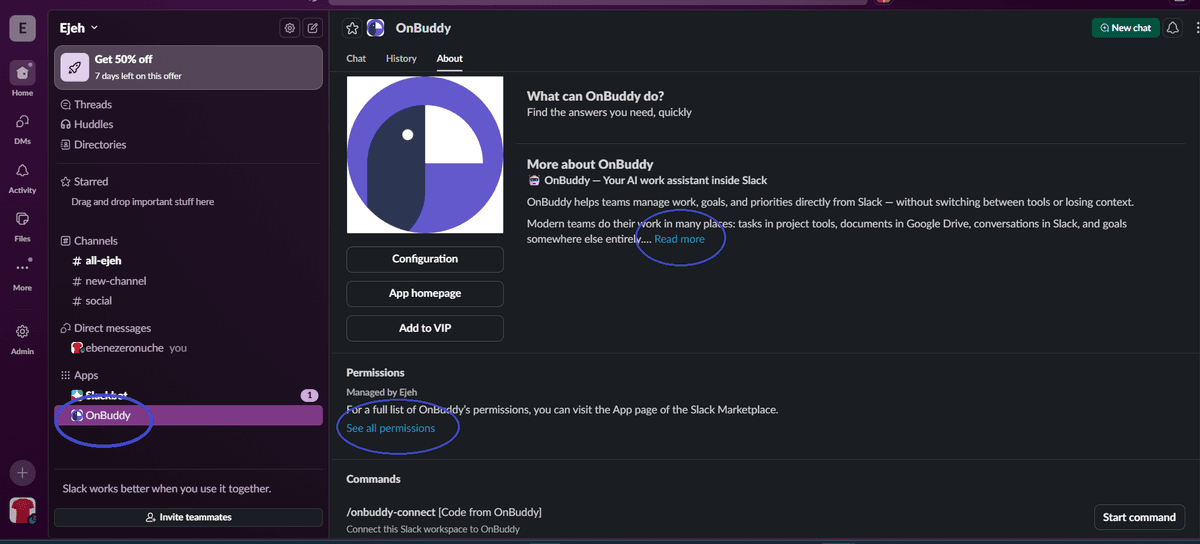
Back in Slack, you’ll find the OnBuddy app icon in your left sidebar. Click it to open the OnBuddy work area, which includes Chat, History, and About tabs. The About tab gives you an overview of what OnBuddy can do and a link to the Slack App Directory for full configuration options.
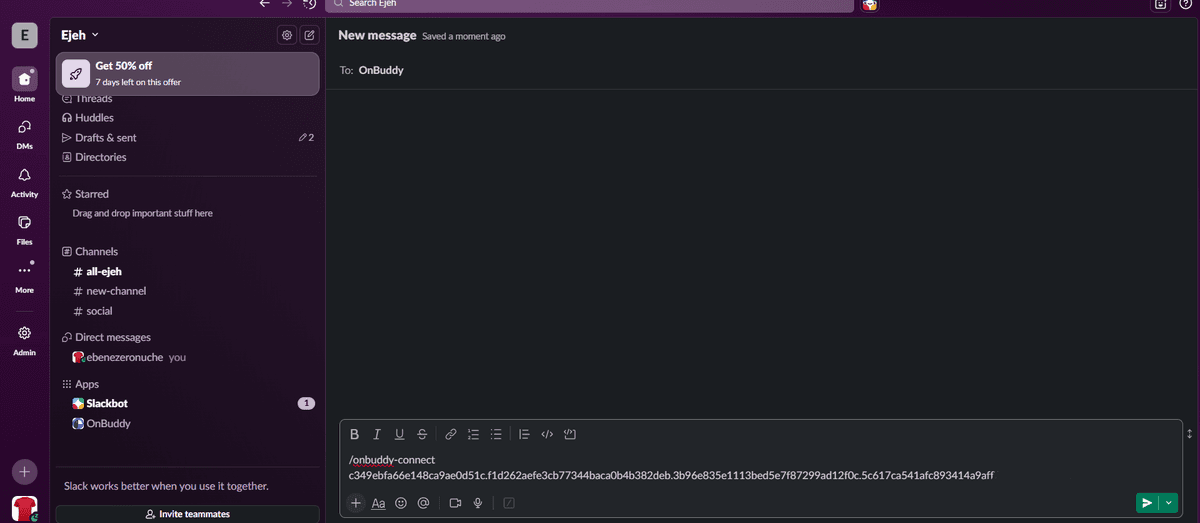
Connect with the Slash Command
To start chatting with OnBuddy, send a direct message to the OnBuddy app containing the slash command you copied earlier. This command (beginning with /onbuddy-connect) links your Slack workspace to your OnBuddy account. Note: send it as a DM to OnBuddy, not in a channel thread.
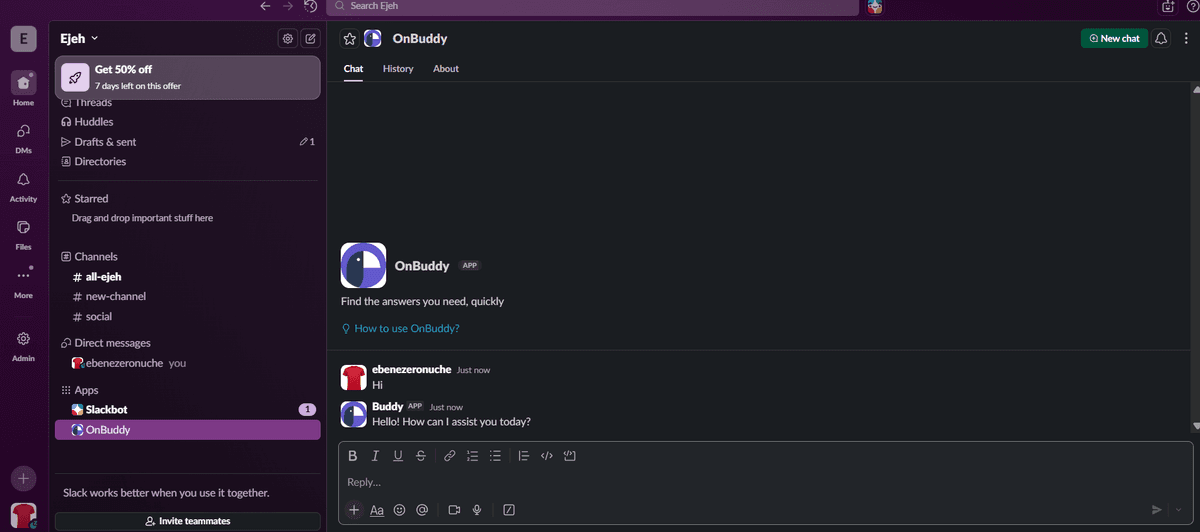
Chat with OnBuddy AI
You’re all set! After sending the slash command, you can now chat with the OnBuddy AI assistant directly in Slack. Ask company questions, get help with onboarding, or access your knowledge base — all from within your workspace.
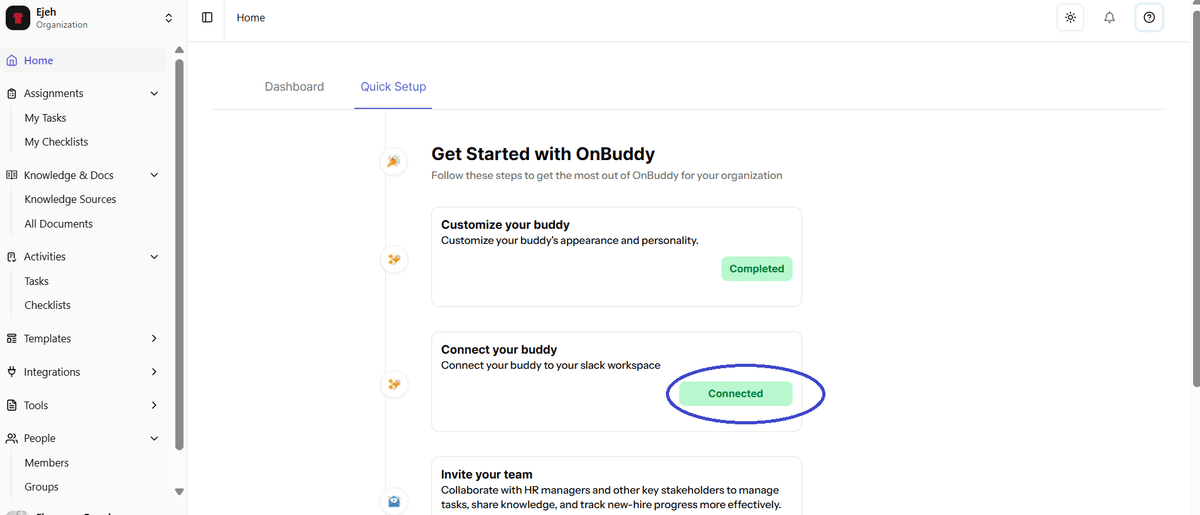
Quick Setup Shows Completed
Once you’ve installed OnBuddy in Slack and connected it with the slash command, head back to the Quick Setup page on the OnBuddy web app. You’ll see the Slack integration marked as “Completed” — confirming everything is set up and ready to go.
Ready to get started?
Install OnBuddy in your Slack workspace today and give your team instant access to AI-powered support, right where they already work.